It is common to forget the password, but no one tries to remember I forgot my wifi password. Most people enter the Wi-Fi network while setting up and forget about it on their device. But when you buy a new phone, or if a guest who comes to your house wants to access the network from their smartphone, then you start looking for the Wi-Fi password. And because of not remembering the password
Resetting a wireless router becomes a compulsion. If you, too, are trapped in such a situation, then through these tips you can recover the password of Wi-Fi.
Let us know an important thing: it is not a guide to hack a Wi-Fi network. Hacking is illegal, and by doing this, you can get into more trouble than expected. Through the suggestions below, you can recover your Wi-Fi password only when one of your devices is connected to that network. If you have forgotten the password to your Wi-Fi network, use these suggestions.
Windows
In this way, you will find many apps on the Internet that claim that with their help, you can recover a Wi-Fi password, but no app is required for a Windows computer. If you do not have administrator access to the PC, you can find out the forgot wifi password by following these suggestions. One thing to keep in mind is that this method will work only when security is set on personal. If you are connected to an enterprise network or using office Wi-Fi, you will not know the password.
1. Take a computer connected to the Wi-Fi network. Then Start > Control Panel > Network and Sharing Center. Go to Windows 8 on your computer. You can tap the Windows key + c, then click on the search and Network and Sharing Center search.
2. Click on Change Editor Settings in the left sidebar.
3. Right-click on the Wi-Fi network you are using. Then click on the status.
4. Click on Wireless Properties.
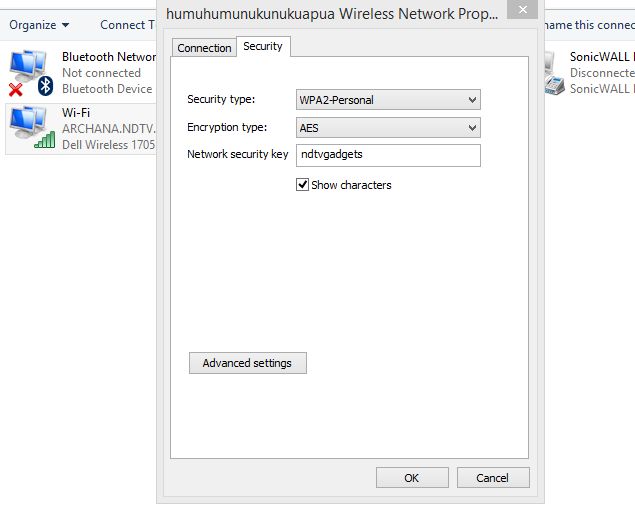
5. Click on the Security Tab.
6. Now you will be able to see the name and hidden password of the Wi-Fi network. Checking on show characters will make your saved password appear.
There is another way to find a password. This is possible by installing a third-party app on the computer. Follow further suggestions for this:
1. Wifi Password Reveler: Download and install. The installer will suggest you install Skype and AVG TuneUp; we will say here that you uncheck them during installation.
2. Run this program after the installation is over.
3. Now you will be able to see all the Wi-Fi networks and their passwords too. You do not do anything other than run this program.
Mac
You have a Wi-Fi password saved on Mac Keychain Access. Can find it through the app. This has to be done for this.
1. Applications/Utilities got into.
2. Keychain Access Open Top on the left side:Keychains listed inside the System Keychain are in
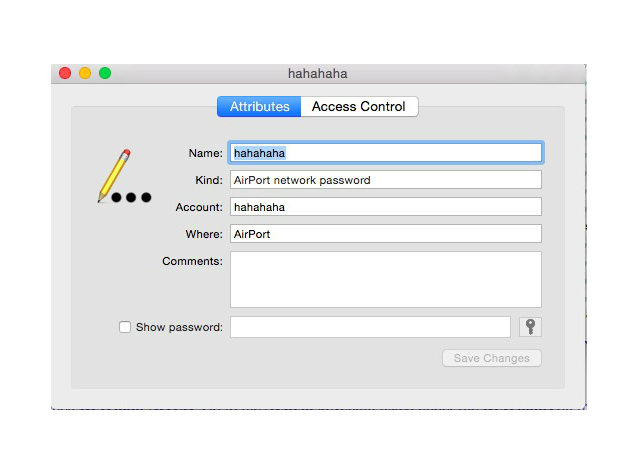
3. Find the Wi-Fi network by typing the name of the network (SSID) in the search box in the top right corner and trying to find the password. Or you can also find it in the list manually.
4. After the search result, double-click on the name of the network. After this, click the show password option.
5. When asked, you will tell the user account password, and after that, you will be able to see the saved password.
Via router
If you do not have any Windows or Mac computers with Wi-Fi passwords, or you are trying to get the password through your phone or tablet, then you can find the password saved on the router. It is obvious that this will work only when you are connected to the router’s network. Remember that you can also connect the router through an Ethernet cable. Tablet and mobile phone until Wi-Fi
If you are not connected to the network, then you cannot know the password.
These steps may be slightly different for each router. If you tamper with the wrong settings, the entire network will be stalled. So you move forward at your risk.
1. First, open the browser and go to the local address of the router. In general, it is http://192.168.1.1, although the URL also depends on the brand of the router, so manually check or look at the official website to know the correct address.
2. Enter the username and password. And this will also be different for different companies. You can also change the password and do so. However, as a default, the router given by MTNL and Airtel contains the username and password “admin.” At the same time, other routers have the default password. If this combination does not work, then you have to contact your router’s manufacturer or internet service provider.
3. First, click on the Internet, then on the wireless. In some routers, the option of wireless is available only on the main screen. In this section, you will be able to see the security type (WEP, WPA) and key. In some routers, all these options are inside the security tab.
The Wi-Fi network password is available in the box next to the Key Field. And on many routers, this plane is available in the terminal, so you have to note it.
If all measures do not work
If any measure does not work, you may have to reset the router. Do not do this until you can connect any device to the network. Resetting the router is the last solution, because after this, you have to reset the entire network to restore the Internet connection. If you do not know about it, they will suggest that you contact your internet service provider.
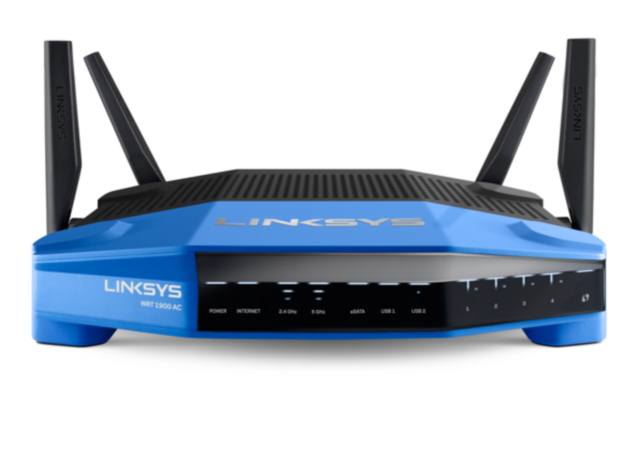
We cannot give you any accurate guide for this, because it is different depending on the manufacturer of the router. Before doing this, you should check the user manual of your router. Every router has a reset switch. Some routers have a very small button, while in some, this button is hidden in a small hole (it can be pressed with paper clips). To reset the router, this switch has to be pressed for some time. Flashing lights on the router will let you know that it has been reset.
Once this happens, you wait for the router to start again and then set up the network. Which step to follow in this process will depend on your internet service provider. It is suggested you contact the service provider to reset the router.
You can check the Wi-Fi password saved in this way. If you also know another way, then tell us through the comments below.